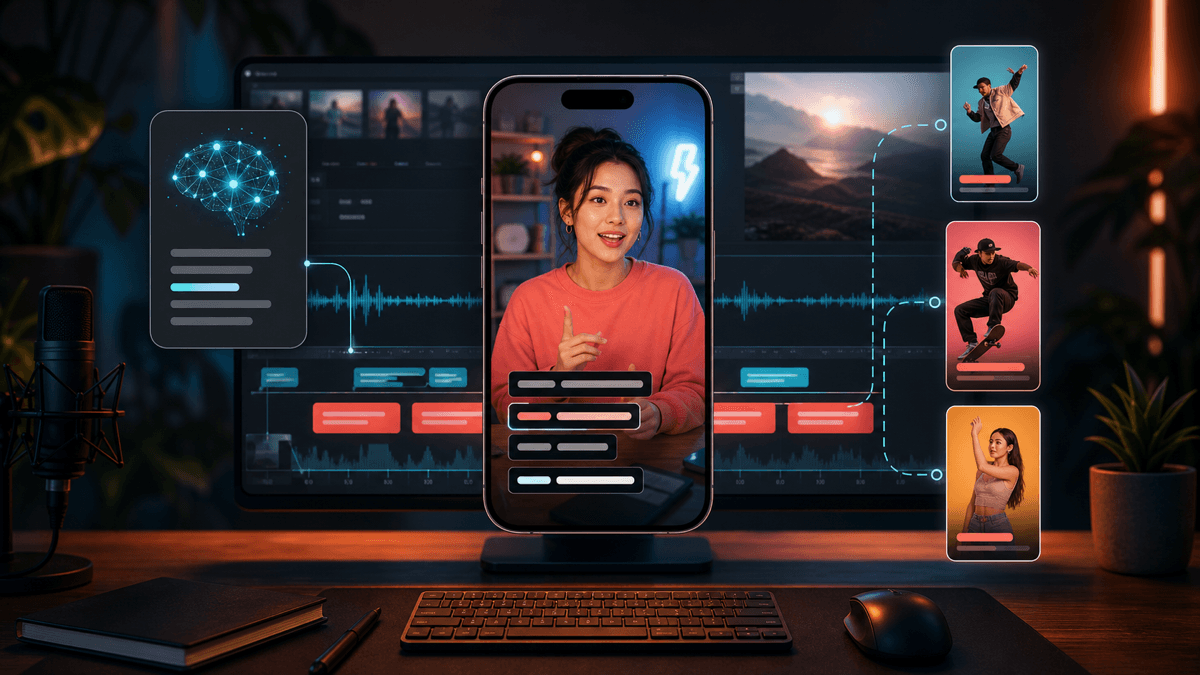
AI Caption Generator for Short Videos

Stella writes SwipeStory guides about AI faceless video creation, short-form video strategy, creator tools, and automated publishing workflows.
An AI caption generator is most useful when it does more than transcribe words. For short videos, it should turn voiceover into readable on-screen caption lines, keep timing synced to speech, preserve safe space for mobile interfaces, and leave you with captions you can edit before publishing. If you want captions to be part of the full video workflow instead of a last-minute overlay, start with SwipeStory's Script to Video AI or Prompt to Video.
Updated May 21, 2026. We checked current YouTube Help, TikTok Creative Codes, CapCut Help, VEED, Descript, and SwipeStory tool pages before writing this guide.
Quick Answer
Use an AI caption generator when you need to move from audio to finished captions quickly, but do not publish the raw transcript without review. The best workflow is:
- Generate captions from clean voiceover or narration.
- Correct misheard words, names, numbers, and technical terms.
- Split long lines into mobile-readable caption beats.
- Style for contrast, safe space, and brand consistency.
- Check timing while watching with sound on and off.
- Export either burned-in captions for social feeds or subtitle files when the platform supports them.
For TikToks, Shorts, and Reels, captions are not only an accessibility layer. They are part of the edit. A strong caption line can clarify the hook, guide silent viewers, and make a faceless video easier to follow. A weak caption line can cover the subject, spoil the reveal too early, or make the video feel automated.
What Should an AI Caption Generator Actually Do?
A good AI caption generator for short videos has five jobs.
| Job | What it means | What to avoid |
|---|---|---|
| Transcribe | Convert speech or voiceover into text | Trusting every word without review |
| Segment | Break captions into short lines | One full sentence covering half the screen |
| Sync | Match caption timing to speech | Captions that arrive late or linger too long |
| Style | Make text readable on a phone | Low contrast, tiny type, or busy animation |
| Export | Fit the publishing workflow | No SRT/VTT option when your platform needs it |
YouTube's official automatic-captioning help page says automatic captions use speech recognition and may vary in quality. It specifically warns that captions can misrepresent speech because of mispronunciations, accents, dialects, or background noise, and says creators should review and edit parts that were not properly transcribed.
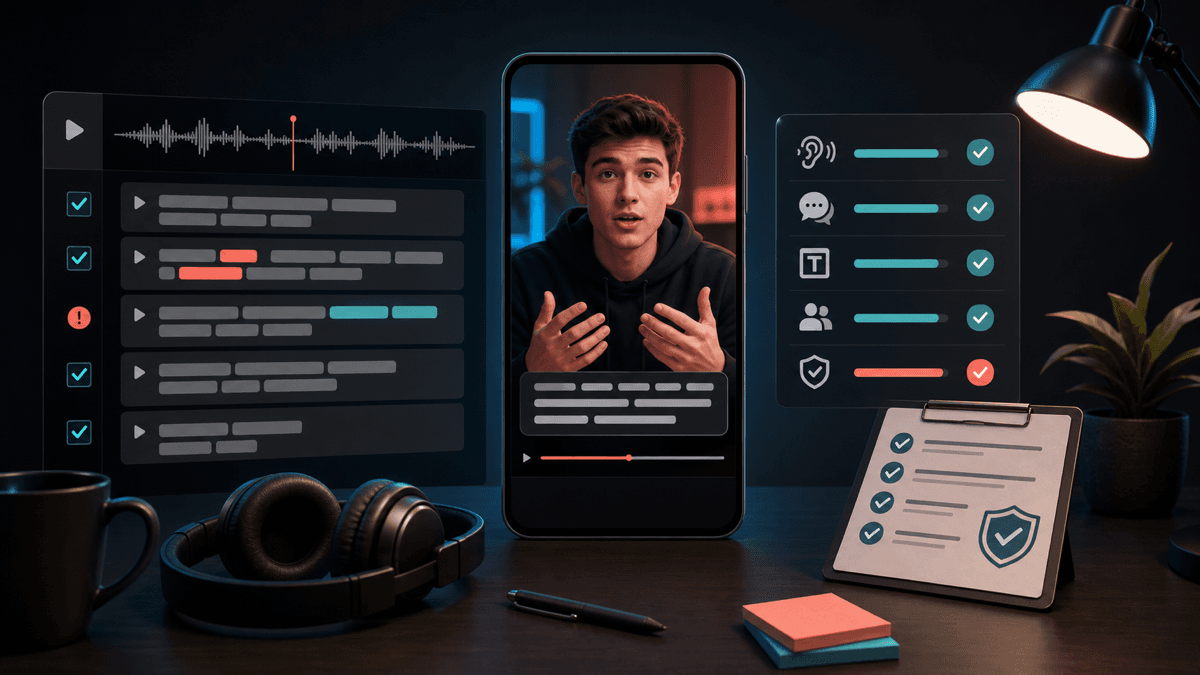
That is the standard to use everywhere. AI can get the first pass close. You are still responsible for the final words on screen.
Build Captions Around the Short-Form Format
Short-form captions need to survive three constraints at once: small screens, fast pacing, and platform UI.
TikTok's current Creative Codes guidance is useful even outside paid ads. TikTok recommends vertical 9:16 framing, high-resolution footage of 720p or higher, and leaving space on screen for the TikTok UI. It also recommends a hook, body, close structure. For captions, that means the first line should reinforce the hook, the middle lines should carry the proof or story, and the final line should support the CTA without crowding the screen.
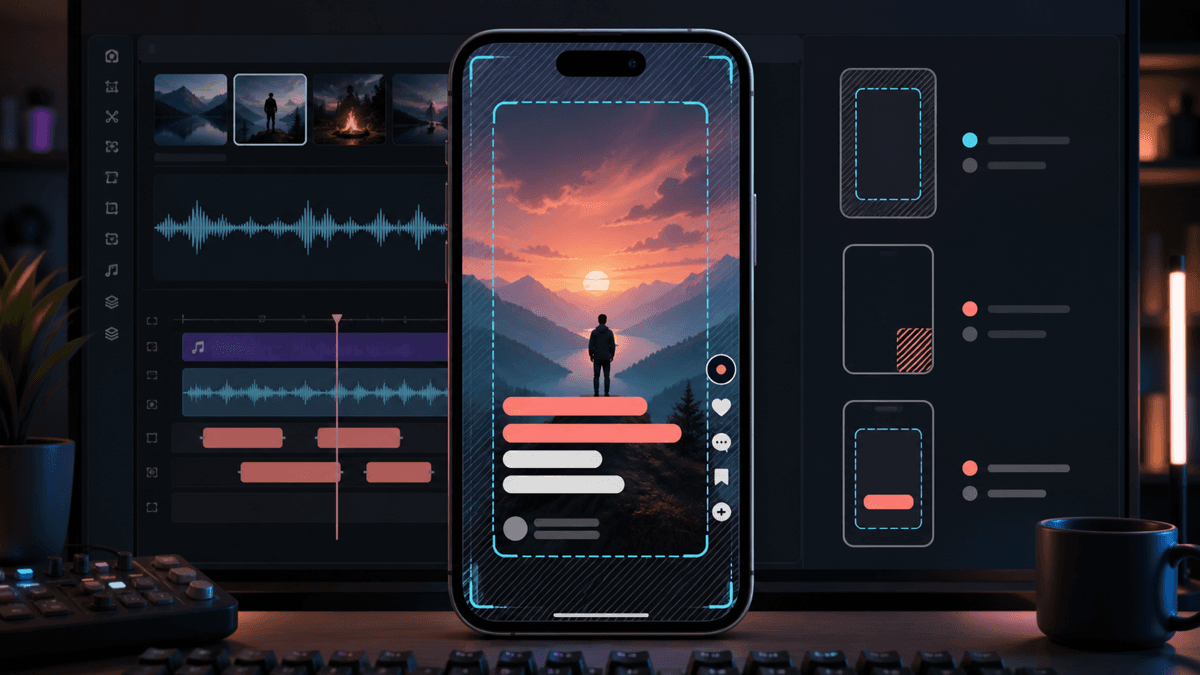
YouTube also changed the Shorts length conversation. YouTube Help says vertical or square videos uploaded on or after October 15, 2024 can be categorized as Shorts up to three minutes long, while Shorts over one minute with active Content ID claims can be blocked globally. Longer Shorts make caption discipline more important, not less. If the caption style is tiring at 30 seconds, it will be worse at two minutes.
For most AI-generated short videos, a practical caption default is:
- One or two lines at a time.
- Roughly one idea per caption beat.
- Strong contrast against the background.
- No important words under platform buttons or captions.
- Manual review for names, numbers, brands, and claims.
Burned-In Captions vs Subtitle Files
Caption tools usually output one of two things.
| Output | Best for | Tradeoff |
|---|---|---|
| Burned-in captions | TikTok, Reels, Shorts previews, ads, and reposted clips where text must always be visible | Viewers cannot turn them off, and mistakes require re-exporting |
| Subtitle files like SRT or VTT | YouTube uploads, web players, courses, webinars, and accessibility workflows | The platform controls display, and some feeds may not show them by default |
For short-form social, burned-in captions are often the safer choice because the viewer sees them immediately. For YouTube and web content, subtitle files can be cleaner because viewers can toggle them and search engines or players may read the structured text. Many creators use both: burned-in captions for the social cut and an SRT/VTT file for platforms that accept it.
Dedicated caption tools can be useful when the video already exists. CapCut's current help page describes Auto Caption, also called Recognise Subtitles, as an AI speech-to-text feature for generating subtitles from spoken audio, with manual editing available after generation. VEED's auto subtitle page says it can generate subtitles, let users style or animate them, and export hardcoded captions or subtitle files such as SRT, VTT, and TXT. Descript's caption generator page positions the workflow around an editable transcript, speaker labels, styled captions, and exporting either subtitle files or burned-in captions.
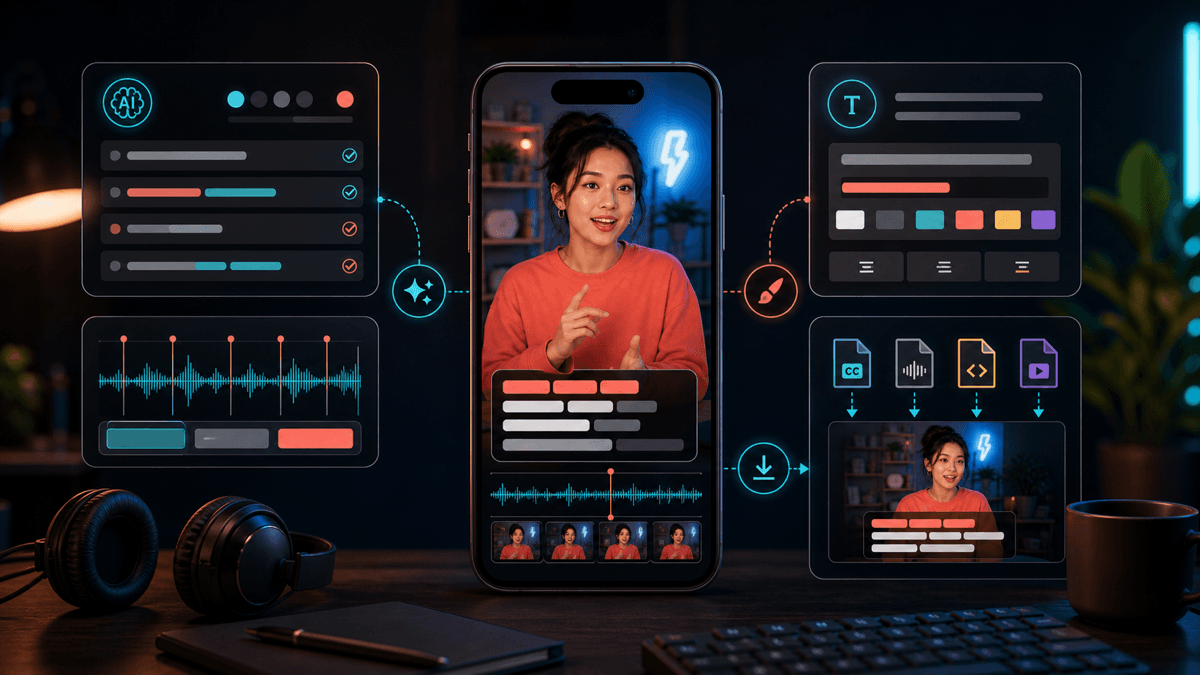
Those tools are strongest after you already have footage or audio. If your starting point is a topic, prompt, or script, an end-to-end generator can be faster because captions are created alongside the voiceover, scenes, and edit.
Where SwipeStory Fits
SwipeStory is not only an AI caption generator. It turns prompts or scripts into vertical videos with AI-generated visuals, voiceovers, captions, background music, editing, rendering, and scheduled publishing for TikTok, YouTube Shorts, and Instagram Reels.
That matters because caption quality is connected to script quality. If the script is one long paragraph, the caption generator has to guess where the beats should land. If the script is written as short visual beats, the captions become cleaner.
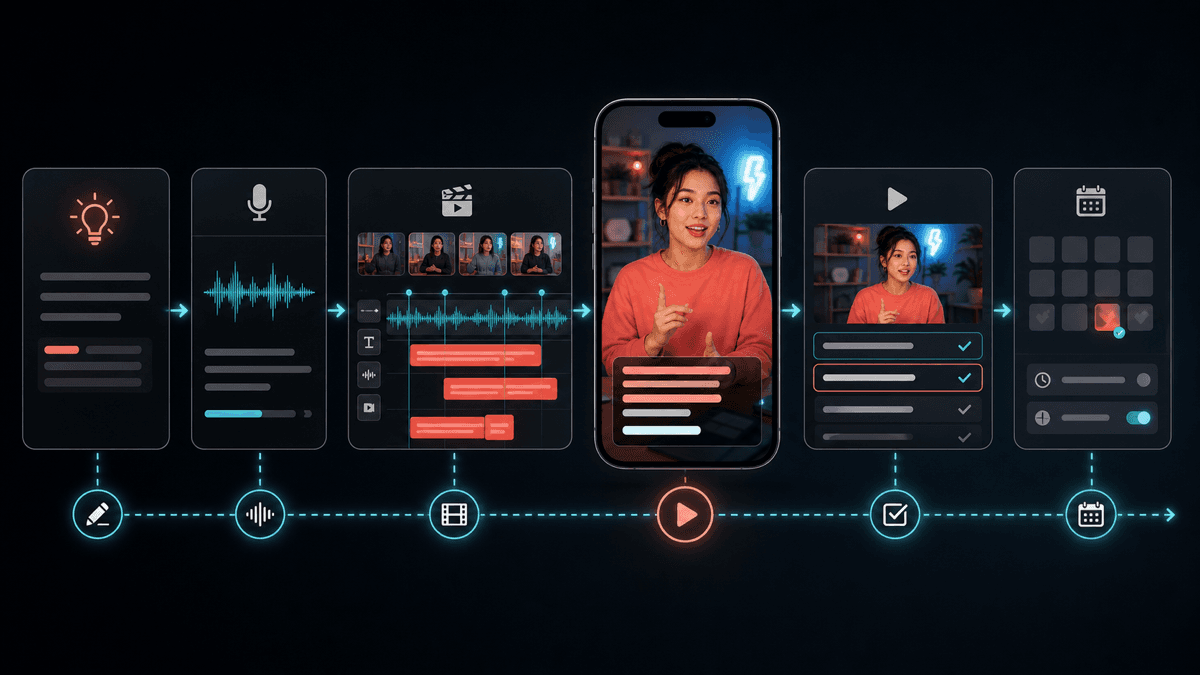
Use SwipeStory when:
- You are creating a faceless video from an idea or script.
- You need captions, voiceover, visuals, music, and rendering in one flow.
- You want reusable caption style across a series.
- You need to publish across TikTok, Shorts, and Reels without rebuilding the video each time.
Use a standalone video caption generator when:
- You already have a finished video.
- You mainly need transcription, SRT/VTT export, or caption styling.
- You are editing long-form footage, webinars, podcasts, or training videos.
- You need a subtitle file for a platform outside the short-form workflow.
If you are building a no-camera channel, pair captions with SwipeStory's faceless AI video generator. If your content starts with a broad idea, use Prompt to Video. If you already wrote narration, use Script to Video AI.
Prompt Template for Better AI Captions
If your tool lets you influence caption style, use a caption brief instead of accepting the default.
Create captions for a vertical short-form video.

Platform: [TikTok / YouTube Shorts / Instagram Reels / cross-platform]
Audience: [specific viewer]
Tone: [direct, educational, story-led, urgent, calm]
Caption style: [clean educational / bold hook-led / minimal / word-by-word emphasis]
Line length: Keep each caption beat short and mobile-readable.
Timing: Match spoken phrases, not full paragraphs.
Safe space: Keep important text away from bottom and right-side platform UI.
Review focus: Flag names, numbers, claims, URLs, and unusual terms for manual review.
CTA: Keep the final caption clear and not crowded.
For a broader script workflow before captioning, read AI video script generator guide. If you need stronger first lines, use TikTok hook examples. If you want reusable structure, pair this with YouTube Shorts script templates.
Caption Style Rules for Shorts, TikToks, and Reels
There is no universal "best" caption style. The right style depends on the video, but these rules hold up across most short-form content.
Keep Captions Short Enough to Read
A caption should usually support one spoken phrase, not the entire thought. If the speaker says, "The reason your faceless videos feel generic is that every scene is carrying the same emotional weight," split it into two or three beats:
Your faceless videos feel generic
because every scene has the same weight
Change the beat before changing the style
That is easier to read on a phone, easier to style, and easier to time.
Use Contrast Before Animation
Animated captions can help emphasize key words, but contrast comes first. A simple white or light caption on a dark translucent background is often more readable than a complicated kinetic style. Do not let motion become the reason viewers cannot read the point.
Avoid Captioning the Wrong Thing
Do not caption filler if it slows the video. Cut or rewrite phrases like "in today's video" or "let's talk about" unless they serve the hook. A caption generator should not preserve every weak line just because the audio contains it.
Review Captions With Sound Off
Watch the full video once without sound. If the story still makes sense, your captions are carrying the right information. Then watch with sound on. If captions lag behind the voiceover or reveal a punchline too early, adjust timing.
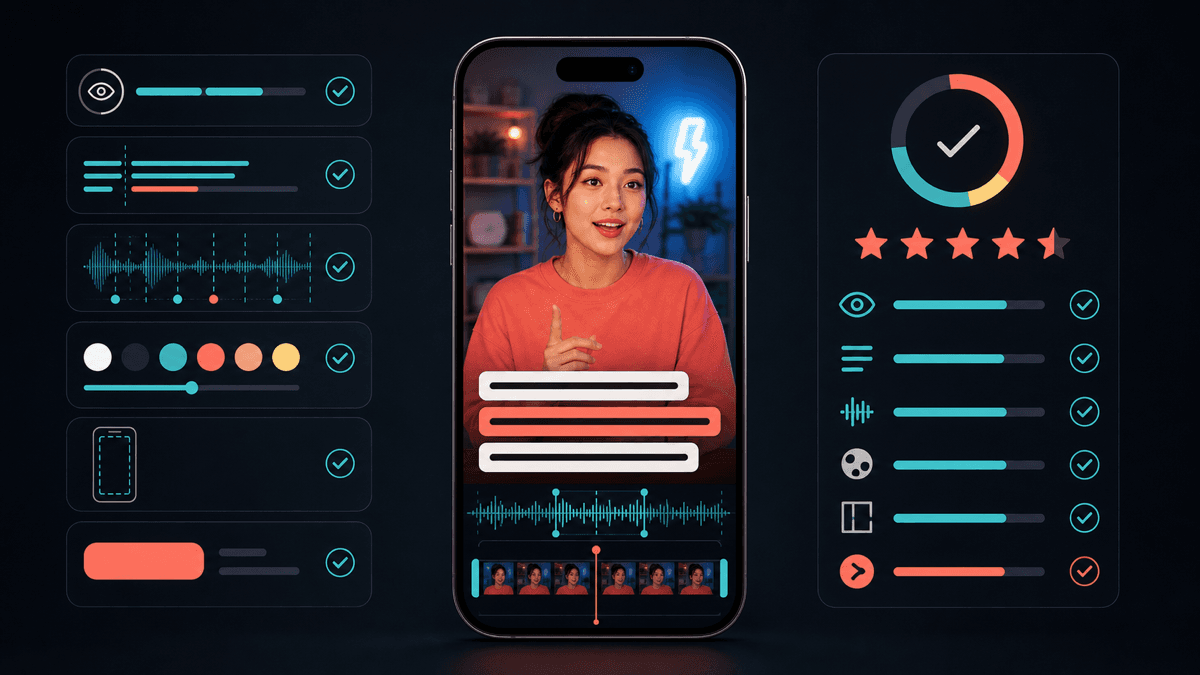
Caption QA Checklist Before Publishing
Use this checklist before exporting or scheduling a captioned short.
| Check | Pass condition |
|---|---|
| Accuracy | Names, numbers, brands, claims, and uncommon words are correct |
| Timing | Captions appear with the spoken phrase and disappear before the next idea crowds them |
| Line length | Each caption beat is short enough to read without pausing |
| Contrast | Text stays readable over bright and dark scenes |
| Placement | Important words are not hidden by interface controls or lower-third clutter |
| Tone | Caption emphasis matches the video, not a random template |
| CTA | Final caption supports one clear next action |
For faceless videos, the most common issue is not transcription. It is pacing. Captions should help the viewer feel the scene changes. If every caption line is the same length, same placement, and same emphasis, the video can feel flat even when the words are correct.
Common Mistakes With AI Captions
The first mistake is assuming auto captions are automatically accurate. YouTube's own Help Center says automatic captions can vary in quality and should be reviewed. That applies to every speech-to-text workflow.
The second mistake is over-styling. Huge animated words can work for reaction clips, but they often make educational videos and story videos harder to follow. Start clean, then add emphasis only where it helps the viewer understand the hook or payoff.
The third mistake is putting captions too low. Platform controls, usernames, buttons, descriptions, and captions can all crowd the bottom of the screen. Keep the important text inside a safe reading area.
The fourth mistake is separating captions from the script. If the spoken lines are too long, caption cleanup becomes tedious. Write with caption beats in mind before you generate the video.
Recommended Workflow
If you are starting from a finished video:
- Upload the video to a caption tool.
- Generate captions from the cleanest audio track available.
- Correct the transcript.
- Split or merge caption beats.
- Style for contrast and safe space.
- Export burned-in captions for short-form social, plus SRT/VTT if you need a separate subtitle file.
If you are starting from an idea or script:
- Write the hook and beat structure first.
- Generate the video in SwipeStory so voiceover, visuals, and captions are created together.
- Review the first two caption beats before polishing the rest.
- Adjust caption style once the pacing is correct.
- Export or schedule the finished video for the right platform.
That second workflow is usually better for creators building recurring series, because the caption style becomes part of the format. You are not just captioning one clip. You are building a repeatable short-form system.
Frequently Asked Questions
What is an AI caption generator?
An AI caption generator uses speech recognition or transcript analysis to create captions from video or audio. For short-form videos, the best generators also let you edit text, timing, style, placement, and export format before publishing.
Are AI captions accurate enough to publish automatically?
Not reliably. AI captions are a strong first draft, but you should review names, numbers, technical terms, claims, accents, background noise, and overlapping speech before publishing.
Should I use burned-in captions or SRT files for Shorts?
For TikTok, Reels, and many Shorts workflows, burned-in captions are practical because viewers see them immediately. For YouTube uploads, courses, and web players, SRT or VTT files can be useful because they keep captions toggleable and editable.
Can SwipeStory create captions automatically?
Yes. SwipeStory creates short-form videos with voiceover, visuals, captions, music, editing, rendering, and publishing support in one workflow. It is best when your input is a prompt or script rather than already finished footage.
What is the fastest way to make captioned faceless videos?
Start with a prompt or script in SwipeStory, generate a draft with voiceover and captions, then review caption accuracy, line length, contrast, and safe-area placement before exporting or scheduling.
