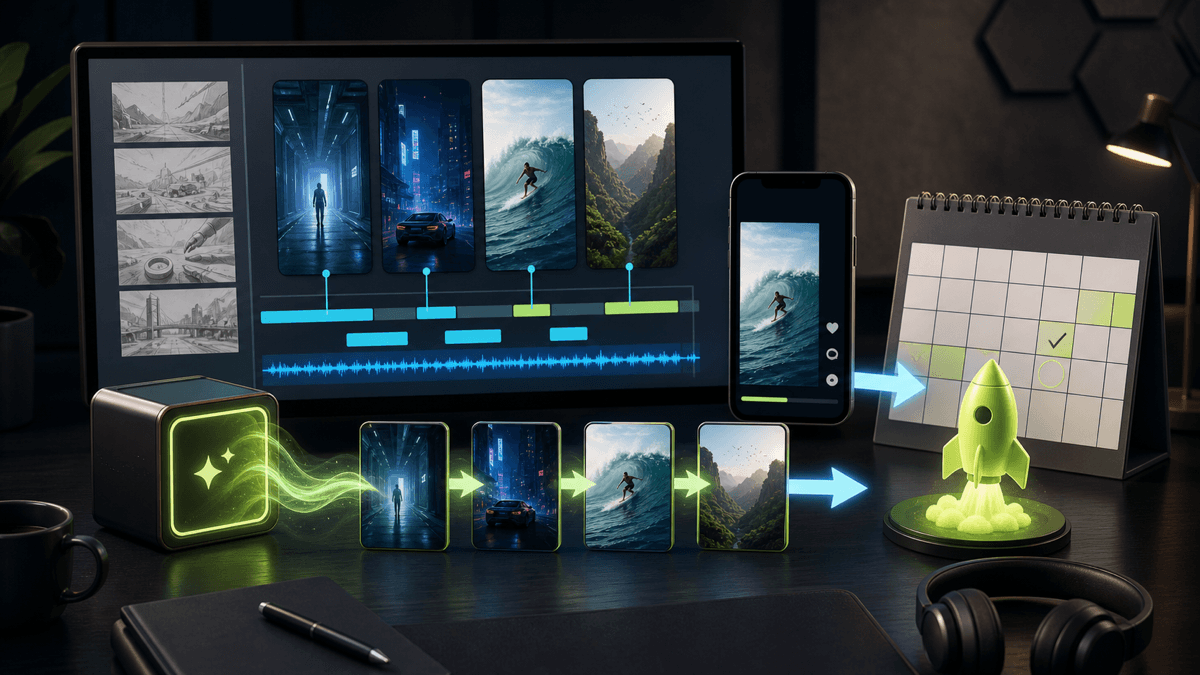
Veo 3 YouTube Shorts Workflow

Stella writes SwipeStory guides about AI faceless video creation, short-form video strategy, creator tools, and automated publishing workflows.
The best Veo 3 YouTube Shorts workflow is not "generate one clip and post it." Use Veo 3 or Veo 3.1 for short, high-impact visual moments, then finish the Short with a hook, narration, captions, platform checks, disclosure handling, and a repeatable publishing system. If you want the full no-camera workflow from script to scheduled Short, pair Veo-style clips with SwipeStory's AI YouTube Shorts generator or start directly from a prompt in SwipeStory.
Updated June 24, 2026. We checked Google's current Veo page, Google Flow updates, Google Cloud Veo documentation, YouTube's Made on YouTube AI tools announcement, YouTube Help pages for AI-generated Shorts features, and YouTube's three-minute Shorts guidance before writing this workflow.
Quick Verdict
| Goal | Best workflow |
|---|---|
| Make a cinematic 4 to 8 second visual beat | Use Veo 3, Veo 3 Fast, Veo 3.1, Flow, Gemini, or the available YouTube Shorts AI tool |
| Build a finished faceless Short | Use a Shorts workflow with script, visuals, voiceover, captions, music, review, and publishing |
| Create a recurring no-camera channel | Use SwipeStory for repeatable prompts, scripts, captions, rendering, and scheduling |
| Repurpose existing camera-roll footage | Use YouTube's Edit with AI, a clipping workflow, or a manual editor before final publishing |
| Avoid platform mistakes | Check aspect ratio, length, audio rights, AI labels, and mobile readability before posting |
Think of Veo as the visual generator, not the whole channel system. That distinction matters because Shorts performance depends on the first second, the story arc, caption readability, audio, title, retention, and consistency across many uploads.
What Changed With Veo 3 on Shorts
YouTube's Made on YouTube 2025 update says YouTube partnered with Google DeepMind to bring a custom version of Veo 3 to YouTube Shorts. The important details for creators are practical: Veo 3 Fast is designed for Shorts, aims for lower latency, creates clips from an idea on a phone, and adds sound. YouTube said it was rolling out in the United States, United Kingdom, Canada, Australia, and New Zealand, with more expansion planned.
That does not mean every creator should replace their workflow with an in-app AI clip tool. It means AI-generated source clips are becoming easier to create inside the Shorts ecosystem. The production question is what happens after that clip exists.
A usable Short still needs:
- A hook that makes sense before the viewer scrolls.
- A clear idea that can be understood without context.
- Voiceover or on-screen information if the clip alone is not enough.
- Captions that stay inside mobile safe zones.
- Audio that you have the right to use.
- A title, description, and publishing cadence.
- Human review before the video goes live.
Veo 3 is valuable because it can create the hard visual beat. A workflow is valuable because it turns that beat into something you can publish again next week.
Where Veo Fits in the Production Stack
Google DeepMind's Veo page now presents Veo 3.1 as its leading video generation model and describes Veo 3 around native audio, prompt adherence, realism, and creative control. Google also links Veo to Gemini, Flow, and developer access paths.
For Shorts creators, that creates three common entry points:
| Entry point | Good for | Watch out for |
|---|---|---|
| YouTube Shorts AI features | Fast in-app clips, green screen backgrounds, quick experiments | Feature availability varies by country, language, and account state |
| Gemini or Flow | More deliberate AI video clips, references, scene control, iterative creative work | You still need editing, captions, Shorts packaging, and publishing |
| SwipeStory | Turning prompts or scripts into complete faceless Shorts | It is for finished short-form output, not deep model research |
If you want one surreal cutaway, Veo can be the right tool. If you need a 30-day faceless Shorts calendar, the system around the clips matters more than the model name.
Native Shorts AI Tools Need Review
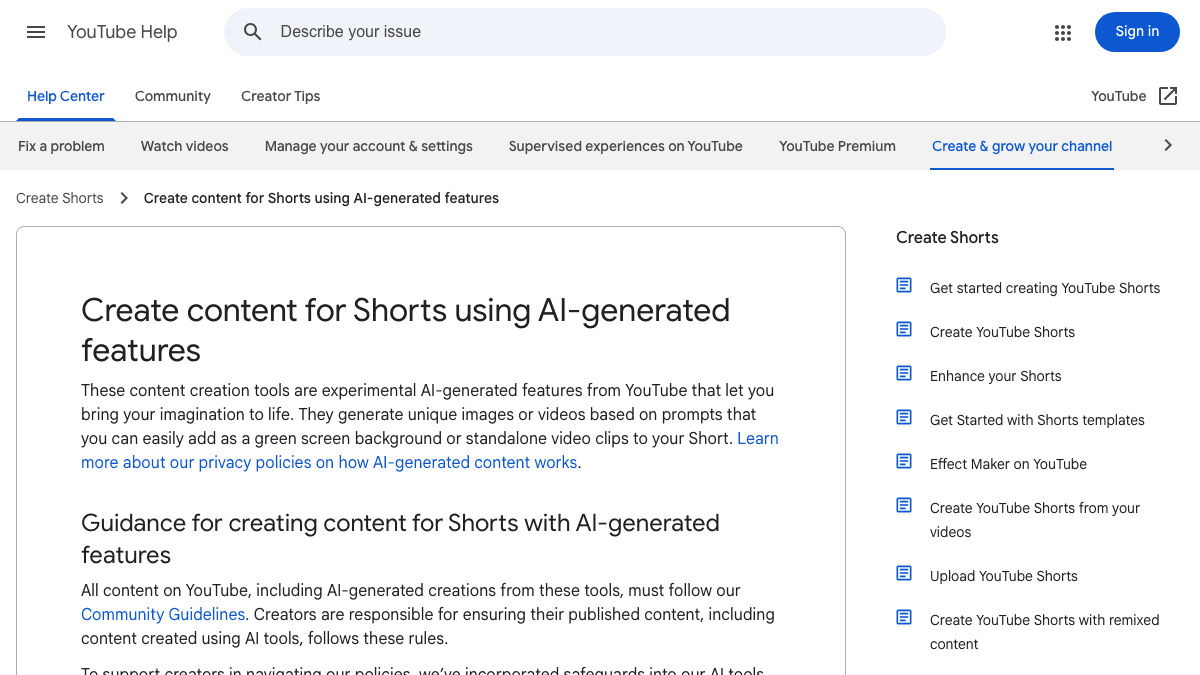
YouTube Help describes AI-generated Shorts tools as experimental features that can generate images or videos from prompts for green screen backgrounds or standalone clips. The same help page says creators should review AI-generated content carefully before publishing. It also says Shorts or posts made with YouTube's own generative AI tools are automatically disclosed by the tool, while availability can vary by location and device language.
That gives you a simple rule: if YouTube generated the clip inside its own AI tool, follow YouTube's built-in disclosure flow. If you created the clip somewhere else, such as Flow, Gemini, an API workflow, or another video model, review YouTube's altered or synthetic content disclosure guidance before publishing.
The creator review step should include:
- Does the clip imply a real event, person, product, or claim that needs context?
- Are there faces, voices, locations, logos, or news-like visuals that could confuse viewers?
- Does the clip include synthetic audio that should be labeled or explained?
- Is the visual clean on mobile, or does it only look good on desktop?
- Does the clip support the hook, or is it just impressive B-roll?
AI video lowers the cost of creating a scene. It does not remove your responsibility for what the scene communicates.
A Practical Veo 3 YouTube Shorts Workflow
Use this workflow when you want Veo 3 or Veo 3.1 visuals without turning every upload into a manual editing project.
1. Start With the Short, Not the Model
Write the Short idea before opening the generator.
Good brief:
A 35-second faceless Short explaining why ocean waves look larger from shore than from a boat. Target audience: curious science viewers. Tone: visual, simple, surprising. Need one cinematic wave shot, one diagram-style explanation, and a final takeaway.
Weak brief:
Make a cool ocean clip.
The first brief tells the model what kind of visual evidence you need. It also tells your production workflow what narration, captions, and pacing must do.
2. Use Veo for the Hardest Visual Beat
Google's Veo 3 Cloud documentation lists 4, 6, and 8 second video lengths, 9:16 and 16:9 aspect ratios, 720p and 1080p outputs, and MP4 output for the documented Veo 3 generation models. That is enough for a strong visual beat, intro shot, background, transition, or story scene. It is not a full three-minute Short by itself.
Prompt for the clip like a director:
Vertical 9:16 cinematic shot. A massive ocean wave rises toward the camera from shore level at golden hour. Slow push-in, realistic water motion, mist in the air, dramatic but educational mood, natural wave and wind sound, no text, no logos, no people.
Keep the prompt narrow. You are not asking Veo to solve the whole video. You are asking it to create one clip that makes the Short easier to understand or more watchable.
3. Build the Script Around Retention
After the visual beat exists, write the Short. A simple structure works:
| Segment | Job | Example |
|---|---|---|
| 0-2 seconds | Hook | "This wave looks taller from shore for a reason." |
| 2-10 seconds | Setup | Show the Veo clip and name the illusion |
| 10-25 seconds | Explanation | Add narration, captions, and one simple visual cue |
| 25-35 seconds | Payoff | Give the takeaway and invite the next episode |
If scripting is the bottleneck, use the YouTube Shorts script templates before generating more clips. Better scripts usually beat more expensive visuals.
4. Add Captions and Audio Deliberately
Veo's native audio can make a clip feel more finished, but the final Short may still need narration, music ducking, caption timing, and cuts. If the generated audio competes with the voiceover, lower it or replace it. If the clip is silent, add ambience or music only when it supports the story.
For faceless channels, captions are not decoration. They carry the argument. Keep them short, readable, and away from platform UI. A good caption pass often improves the video more than another model generation.
5. Finish in a Shorts Workflow
This is where a model-first process often breaks. Creators generate five clips, then still have to assemble a timeline, write narration, pick music, add captions, export, check safe zones, and upload.
SwipeStory's faceless AI video generator is built for the other side of the workflow: prompts or scripts become vertical videos with AI-generated visuals, voiceovers, captions, background music, editing, rendering, and scheduled publishing for TikTok, YouTube Shorts, and Instagram Reels.
Use Veo for specialty clips when you need them. Use SwipeStory for the repeatable path from idea to finished Short.
Shorts Format Checks Before Publishing
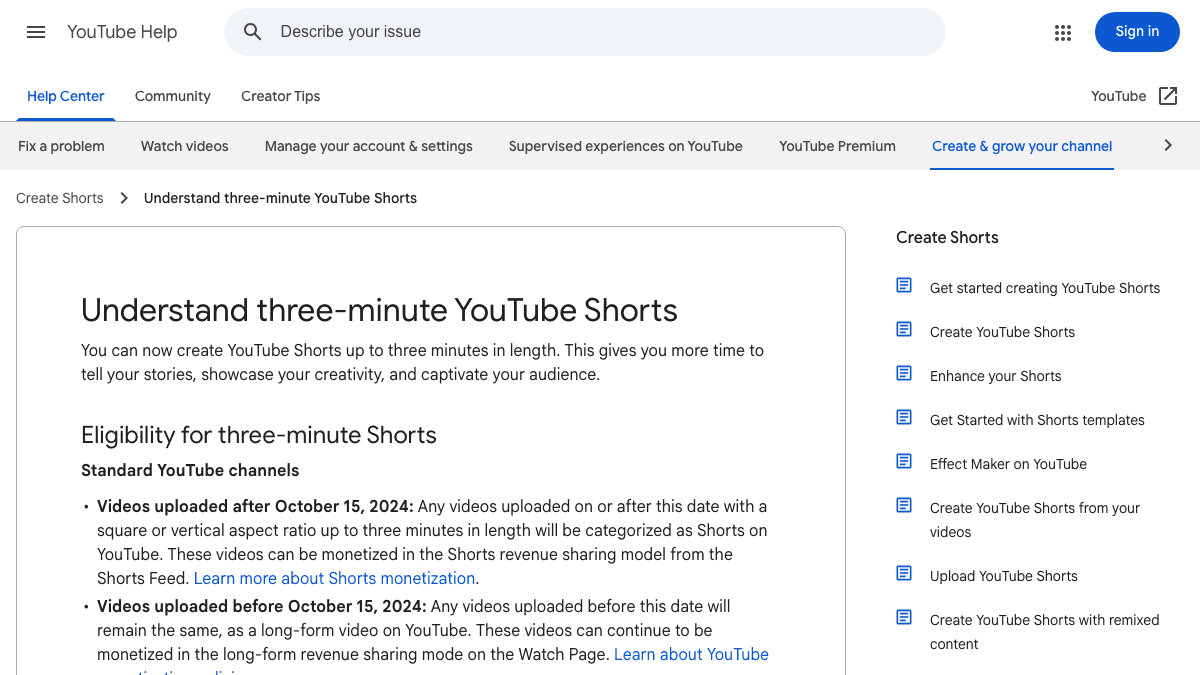
YouTube Help says standard channels can have videos categorized as Shorts when they are uploaded after October 15, 2024, use a square or vertical aspect ratio, and are up to three minutes long. It also says Shorts over one minute with an active Content ID claim can be blocked globally until the claim is resolved.
Before publishing an AI-generated Short, check:
| Check | Why it matters |
|---|---|
| Aspect ratio | Use vertical 9:16 or square if you want Shorts categorization |
| Length | Keep the final edit within Shorts limits; shorter often reviews faster |
| Audio rights | AI audio, music, and sound effects still need review |
| Captions | Keep important text away from UI overlays |
| AI disclosure | Use YouTube's flow for altered or synthetic content when needed |
| Mobile preview | Watch the finished Short on a phone before scheduling |
For a deeper cadence plan, pair this with how often to post YouTube Shorts. The right production volume is the one you can review properly.
Finish and Schedule With SwipeStory
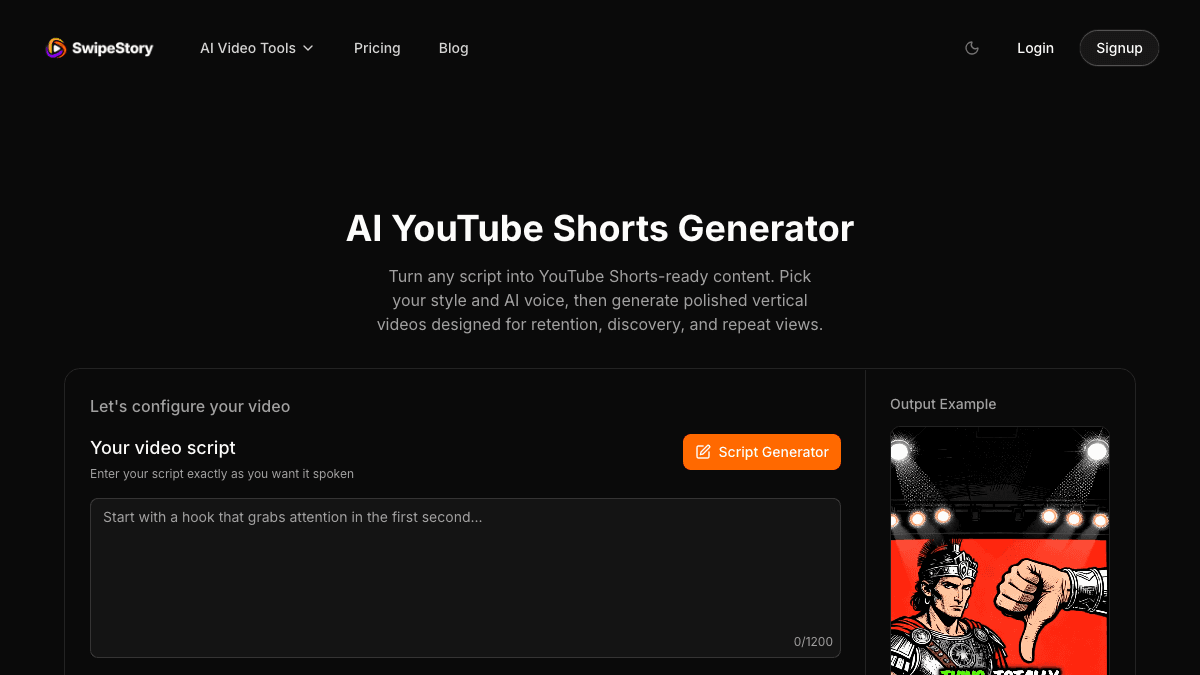
If your workflow starts with a finished Veo clip, use SwipeStory to package the idea into a postable Short. If your workflow starts with a topic, use Prompt to Video, Script to Video AI, or the AI YouTube Shorts generator to create the draft first.
A good weekly setup looks like this:
| Day | Production task |
|---|---|
| Monday | Pick five topics and write hooks |
| Tuesday | Generate any specialty Veo clips |
| Wednesday | Turn scripts into SwipeStory drafts |
| Thursday | Review captions, audio, visuals, and Shorts format |
| Friday | Schedule the strongest videos and note what to improve next week |
That workflow keeps Veo in the right place. It is a source-clip engine inside a broader content system, not the only tool you open.
Check SwipeStory pricing before planning a high-volume series, because the right plan depends on video length, credit usage, series count, and publishing cadence.
Common Mistakes
Posting the Raw Clip
A raw AI clip can look impressive and still fail as a Short. Add context, pacing, captions, and a reason to keep watching.
Generating Too Many Variations
Do not spend the entire session chasing a perfect clip. If the hook is weak, more generations will not fix the video. Improve the script first.
Ignoring Disclosure and Rights
AI-generated video can still create viewer confusion, rights questions, or policy issues. Review synthetic content rules, music claims, and any real-world implications before posting.
Making Every Short Cinematic
Some Shorts need cinematic visuals. Others need fast explanation, clear captions, or a simple screen-recording style. Match the visual style to the promise of the video.
Final Recommendation
Use Veo 3 or Veo 3.1 when a Short needs a specific visual moment that would be hard to film, source, or animate manually. Use YouTube's native AI features when you want quick in-app experimentation. Use Flow, Gemini, or developer access when you need more deliberate clip generation.
Use SwipeStory when the real bottleneck is finished output. A creator posting faceless Shorts every week needs scripts, visuals, voiceovers, captions, music, rendering, review, and scheduling. Veo can supply the standout shot. SwipeStory can help turn the idea into a repeatable publishing workflow.
Frequently Asked Questions
Can Veo 3 make YouTube Shorts?
Veo 3 can generate short video clips that can be used in YouTube Shorts. You still need a finished Short workflow for script structure, captions, audio, export checks, disclosure review, and publishing.
Is Veo 3 available directly in YouTube Shorts?
YouTube announced a custom Veo 3 Fast experience for Shorts and described it as rolling out in select countries. Availability can vary by region, account, language, and app state, so check your YouTube app and the current YouTube Help page.
Should I use Veo 3 or SwipeStory?
Use Veo 3 when you need a cinematic source clip. Use SwipeStory when you want a complete faceless Short from a prompt or script, including visuals, voiceover, captions, music, rendering, and scheduled publishing.
What aspect ratio should Veo clips use for Shorts?
Use 9:16 when possible. Google's documented Veo 3 generation models support 9:16 and 16:9, and YouTube Shorts expects square or vertical videos for Shorts categorization.
Do AI-generated Shorts need labels?
YouTube says Shorts made with its own generative AI tools are automatically disclosed by the tool. If you make AI video with another tool, review YouTube's altered or synthetic content guidance before publishing.
Sources
- Google DeepMind: Veo
- YouTube Official Blog: Unpacking the magic of our new creative tools
- YouTube Help: Create content for Shorts using AI-generated features
- YouTube Help: Understand three-minute YouTube Shorts
- Google Cloud documentation: Veo 3
- Google Blog: Bringing new Veo 3.1 updates into Flow
- SwipeStory: AI YouTube Shorts Generator
