
Export Video for Social Media: 2026 Platform Guide

Stella writes SwipeStory guides about AI faceless video creation, short-form video strategy, creator tools, and automated publishing workflows.
Exporting video for social media is the process of rendering your edited footage into a format, resolution, and bitrate that each platform accepts without degrading quality. Get these settings wrong and the platform's compression pipeline will do the damage for you, turning sharp footage into a blurry, artifact-riddled upload. The MP4 container with H.264 video codec and AAC audio codec is the universal industry standard in 2026, and it works reliably across TikTok, Instagram, Facebook, and YouTube. Swipestory's AI video generator builds these settings in by default, which is why thousands of creators have used it to produce over 60,000 short videos without touching a single export dialog.
What are the best video formats for social media exports?
The MP4 format with H.264 and AAC is the right choice for nearly every platform in 2026. It offers the best balance of file size, compatibility, and visual quality after platform recompression. MOV files work on some platforms, but they produce larger files and cause compatibility issues on Android devices. Stick with MP4 unless a platform explicitly requires something else.
Frame rate matters more than most creators realize. Exporting at 30 fps matches the playback standard for most social platforms and prevents visual inconsistency during processing. Shooting at 60 fps for slow-motion is fine, but your final export should match the platform's expected frame rate.
Bitrate controls how much data your video carries per second. For 1080p exports, a bitrate in the 8–15 Mbps range gives you clean visuals without producing a file so large it triggers aggressive platform compression. Higher is not always better. A 4K file uploaded to Instagram will get compressed harder than a clean 1080p file, often resulting in worse playback on mobile.
- Container: MP4
- Video codec: H.264
- Audio codec: AAC, stereo, 44.1 kHz or 48 kHz
- Frame rate: 30 fps (match your source)
- Bitrate for 1080p: 8–15 Mbps
- Color space: Rec. 709 (standard for web delivery)
Pro Tip: Export from your original project file whenever possible. Every time you re-encode an already compressed file, you lose quality. Treat your export as a delivery file built to survive one round of platform compression, not a permanent archive.
How do you choose the right resolution and aspect ratio?
Resolution and aspect ratio are the two settings that most directly affect how your video looks on screen. The wrong combination causes cropping, black bars, or content hidden behind platform UI elements. Each platform has a preferred frame size, and matching it exactly prevents the platform from resizing your video on its end.

Short-form vertical video: TikTok, Reels, and Shorts
The optimal resolution for vertical short-form video is 1080 x 1920 pixels at a 9:16 aspect ratio. This fills the entire mobile screen without letterboxing or cropping. Uploading a landscape or square video to TikTok forces the platform to add black bars, which reduces perceived production quality.
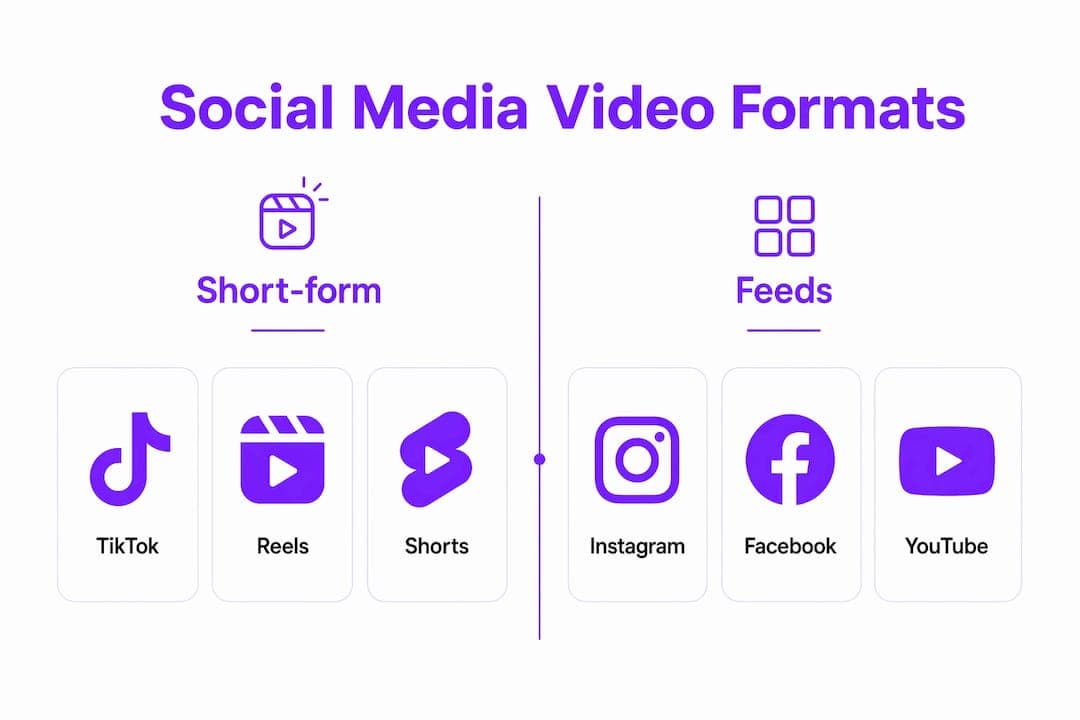
Instagram Feed and Facebook Feed
A 4:5 aspect ratio at 1080 x 1350 pixels outperforms square 1:1 video on Instagram Feed because it takes up more vertical space as users scroll. More screen space means more attention. Facebook Feed follows the same logic, making 4:5 the preferred choice for feed-based content on both platforms.
YouTube and landscape formats
YouTube and podcast-style content belong in 1920 x 1080 pixels at 16:9. This is the standard widescreen format that fills desktop and TV screens cleanly. Uploading vertical video to YouTube results in black bars on the sides, which looks unfinished.
| Platform | Resolution | Aspect ratio |
|---|---|---|
| TikTok, Reels, Shorts | 1080 x 1920 px | 9:16 |
| Instagram Feed, Facebook Feed | 1080 x 1350 px | 4:5 |
| YouTube, webinars | 1920 x 1080 px | 16:9 |
| Instagram Square | 1080 x 1080 px | 1:1 |
Safe zones are the area of your frame where platform UI elements will not cover your content. Placing key text or visuals in the bottom third of a vertical video risks having them hidden by captions, like buttons, or profile handles. Keep your most important content centered vertically and horizontally within the middle 70% of the frame.
Pro Tip: Build a separate timeline for each platform in your editing software. Resizing a single master file after the fact almost always causes awkward cropping. A dedicated 9:16 timeline for Reels and a separate 4:5 timeline for Feed takes an extra 10 minutes and saves you from losing key visuals.
Step-by-step workflow for exporting social media videos
A clean export workflow removes guesswork and produces consistent results across every platform. Follow these steps in order.
- Set up a platform-specific timeline. Create a new sequence or project with the exact resolution and aspect ratio for your target platform before you start editing. This prevents reframing problems at export time.
- Edit within the safe zone. Keep all text, logos, and faces away from the outer 15% of the frame. This protects your content from UI overlays and platform cropping.
- Select H.264 as your video codec and AAC as your audio codec. In most editing applications, this appears under "Format: H.264" with an MP4 output container.
- Set your frame rate to match your source. If you shot at 30 fps, export at 30 fps. Mismatched frame rates cause stuttering during platform processing.
- Set your bitrate. Use 8–15 Mbps for 1080p content. Use a variable bitrate (VBR) setting with a target of 10 Mbps and a maximum of 15 Mbps for efficient file sizes.
- Check your audio settings. Export stereo audio at 44.1 kHz or 48 kHz. Mono audio sounds thin on mobile speakers.
- Name your files clearly. Use a naming convention like
brandname_platform_date_v1.mp4. This prevents uploading the wrong version. - Preview the export on a mobile device before publishing. Open the file on your phone and watch it at full volume. This catches color shifts, audio sync issues, and framing problems that desktop previews miss.
For creators managing a social video campaign across multiple platforms, batching exports by platform at the end of each editing session saves significant time. Export all 9:16 versions first, then switch to 4:5, then 16:9.
What are the most common mistakes when exporting videos for social media?
Most quality problems in social media video come from a small set of avoidable mistakes. Knowing them in advance saves you from re-editing and re-uploading.
- Uploading already compressed files. Heavily compressed source files degrade further when platforms recompress them. Always export from your original project, not from a previously uploaded or shared file.
- Using one master file for all platforms. Resizing a single export for every platform leads to cropping and lost content. Build separate exports for each platform's dimensions.
- Ignoring safe zones. Text or faces placed near the frame edges get covered by platform UI elements. This is one of the most common causes of poor viewer engagement.
- Transferring files through apps that auto-compress. Sending your video through messaging apps or email clients often triggers automatic compression. Desktop browser uploads maintain cleaner quality than mobile app uploads.
- Sharing links instead of uploading natively. Native uploads receive algorithmic priority over linked or reposted content. Platforms reward original video files with wider distribution.
Exported videos are delivery files, not archives. Their job is to survive one round of platform compression and still look sharp. Build them clean, keep bitrates in the recommended range, and upload natively every time. That single habit separates creators whose videos look professional from those who wonder why their footage looks worse after upload.
The file transfer method also matters more than most guides acknowledge. Avoid using apps that auto-compress files during transfer. Use a direct cable connection, AirDrop, or a cloud storage service that preserves original file quality when moving footage from your editing machine to your upload device.
Key Takeaways
The best social media video exports use MP4 with H.264 and AAC, platform-specific resolutions, a 30 fps frame rate, and native uploads to maximize quality and algorithmic reach.
| Point | Details |
|---|---|
| Universal format | Use MP4 with H.264 video and AAC audio for compatibility across all major platforms. |
| Platform-specific dimensions | Match resolution and aspect ratio exactly: 9:16 for vertical, 4:5 for feed, 16:9 for YouTube. |
| Bitrate for 1080p | Target 8–15 Mbps to balance visual quality and file size before platform compression. |
| Safe zone framing | Keep key content in the center 70% of the frame to avoid UI overlay coverage. |
| Native uploads only | Upload original files directly to each platform to maximize algorithmic reach and video quality. |
Why export settings are the last creative decision you make
Most creators treat export as a technical afterthought. I think that's a mistake. The export file is the version your audience actually sees. Every creative decision you made in the edit gets filtered through whatever codec and bitrate you chose at the end.
The insight that changed how I approach this: exported videos are delivery files, not masters. Their only job is to survive platform compression and arrive at the viewer's screen looking sharp. Once I started thinking about exports that way, I stopped trying to export at the highest possible quality and started exporting at the right quality for each platform's pipeline.
The safe zone issue is underrated. I've seen well-produced videos tank in engagement simply because the creator's call-to-action text sat in the bottom 20% of the frame, hidden behind TikTok's caption bar. Framing within safe zones is not a technical detail. It's a viewer experience decision.
My strongest recommendation is to preview every export on your actual phone before publishing. Desktop monitors show color and sharpness differently than mobile screens. What looks clean on a 27-inch display can look washed out on an iPhone. That 60-second check has saved me from publishing bad uploads more times than I can count. Pair that habit with time-saving production tools and your workflow becomes both faster and more consistent.
— Jesse
Swipestory takes the export complexity out of social video
Configuring codecs, bitrates, and platform-specific timelines takes time that most creators would rather spend on content itself. Swipestory's AI-powered social media video maker handles format selection, aspect ratio setup, and cloud rendering automatically, so your videos arrive platform-ready without manual export configuration.

Swipestory has already generated over 60,000 short videos for creators across TikTok, Instagram, and YouTube. The platform's short video maker produces 9:16 and 4:5 exports natively, with customizable captions and AI-generated visuals built in. If you want platform-optimized video without the technical setup, Swipestory is the direct path there.
FAQ
What is the best video format for social media in 2026?
MP4 with H.264 video codec and AAC audio codec is the best format for social media in 2026. It offers the widest platform compatibility and survives recompression better than any alternative container.
What resolution should I use for Instagram Reels?
Export Instagram Reels at 1080 x 1920 pixels in a 9:16 aspect ratio. This fills the full mobile screen and prevents platform-side cropping or black bars.
How do I export videos for Instagram Feed?
Use 1080 x 1350 pixels at a 4:5 aspect ratio for Instagram Feed video. This dimension takes up more vertical screen space than square video and tends to drive higher engagement.
Why does my video look blurry after uploading to social media?
Blurry uploads usually result from uploading an already compressed file, which causes double compression artifacts. Always export directly from your original project file and upload natively via desktop browser.
Does frame rate affect social media video quality?
Yes. Exporting at 30 fps to match the platform's standard prevents stuttering and processing artifacts. Mismatched frame rates cause visual inconsistency that platforms cannot fully correct during processing.
